Screenshots
Every screen of the plugin. The same images power the WordPress.org directory page.
Dashboard
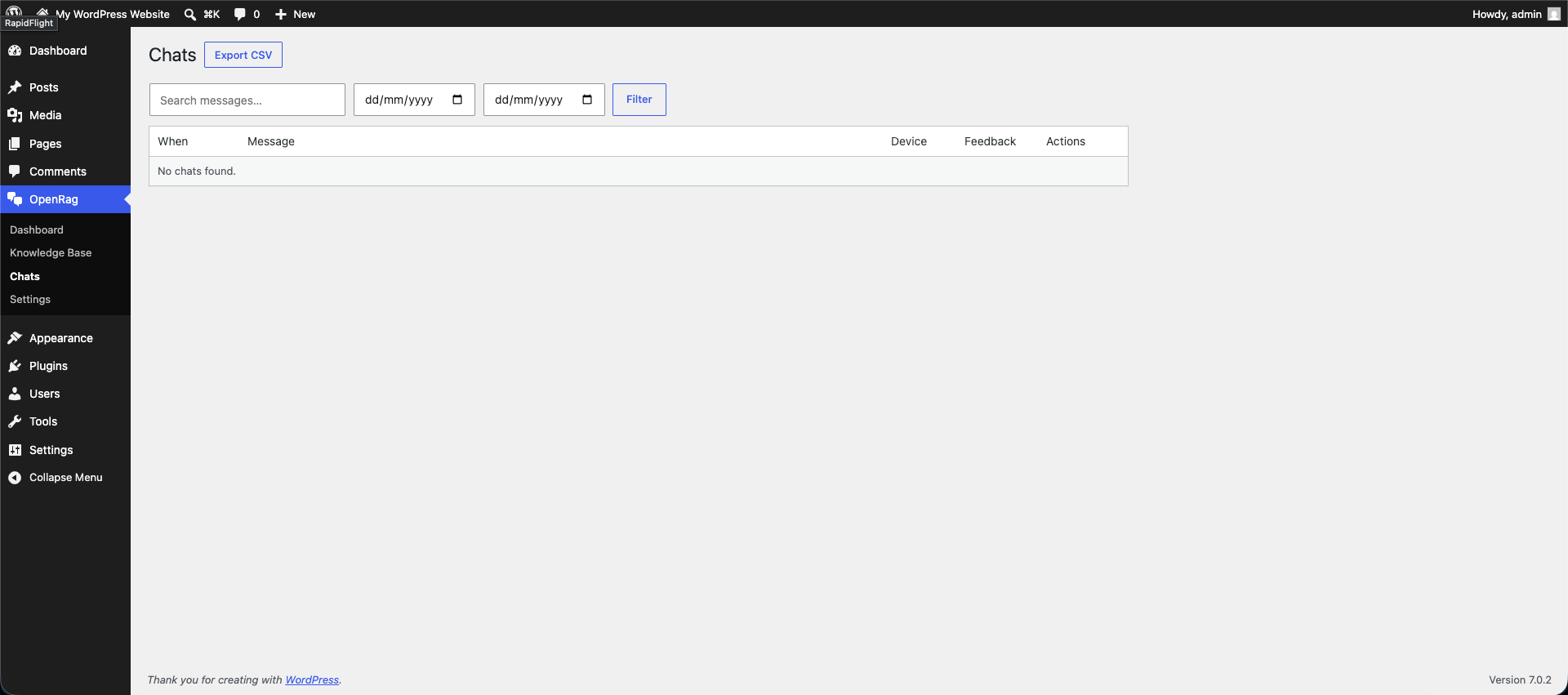
1. Dashboard
Overview cards (documents, chunks, chats, feedback), system status showing the active LLM, embedding provider and vector store mode, plus recent activity.
Knowledge Base
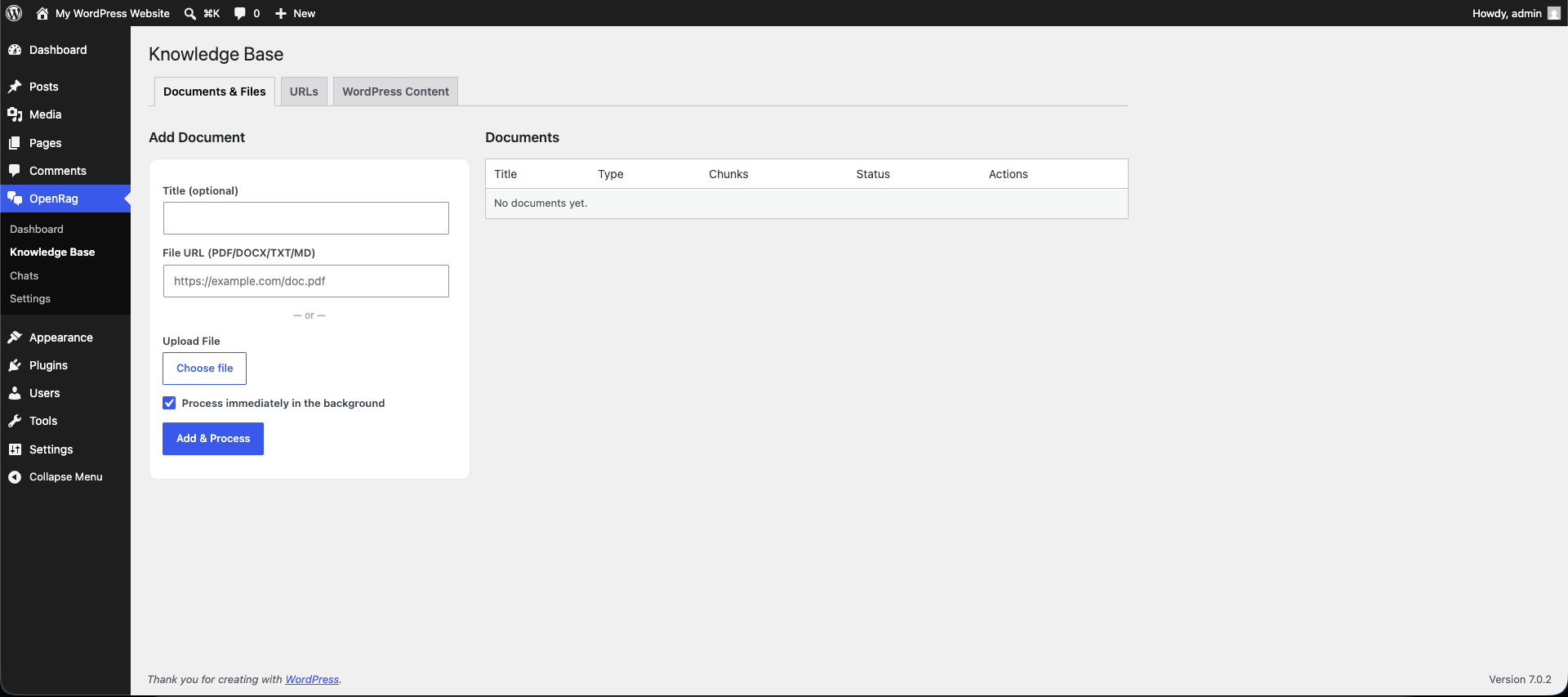
2. Knowledge Base — Documents & Files
Upload PDF/DOCX/TXT/MD files or paste a URL; documents are listed with live status badges, chunk counts and reindex/delete actions.
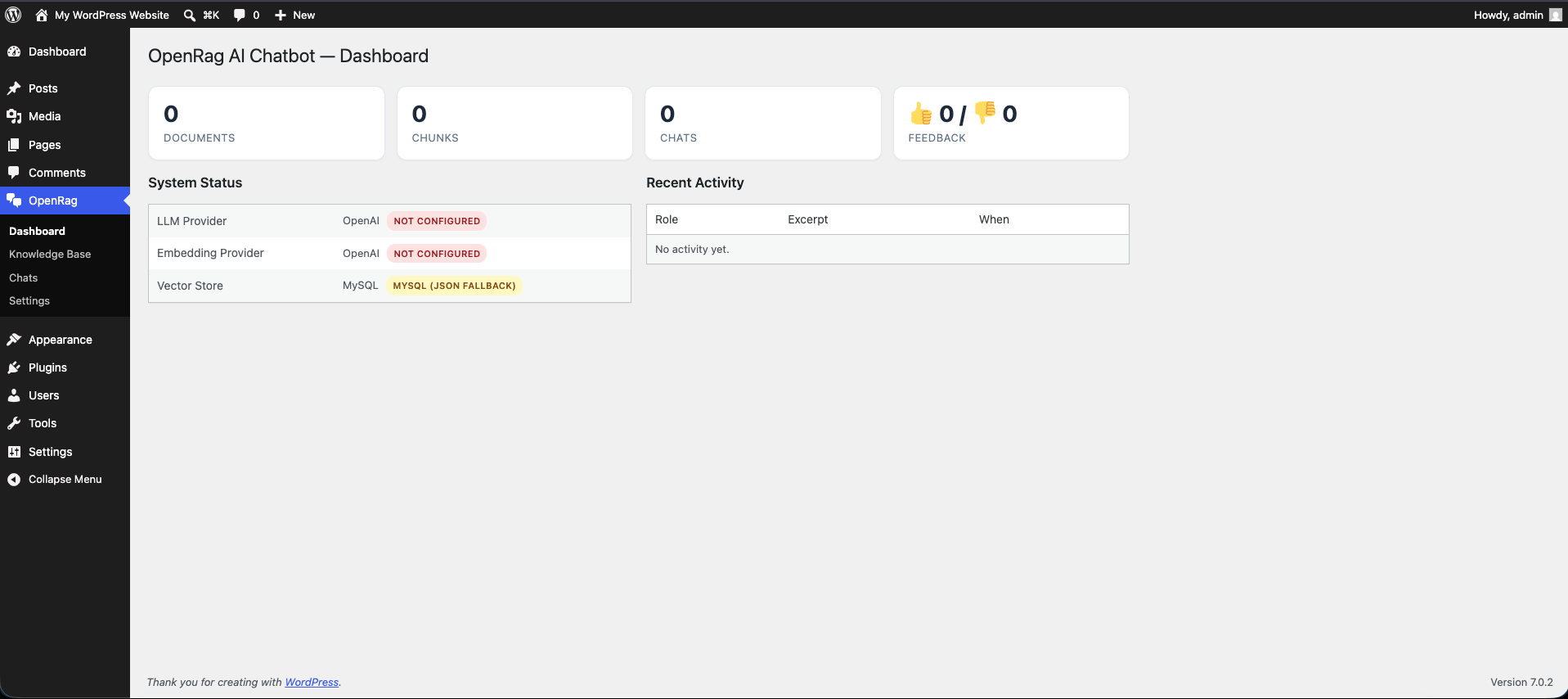
3. Knowledge Base — WordPress Content
Pick which post types (posts, pages, CPTs) become searchable, enable auto-indexing, and bulk-queue existing content for embedding.
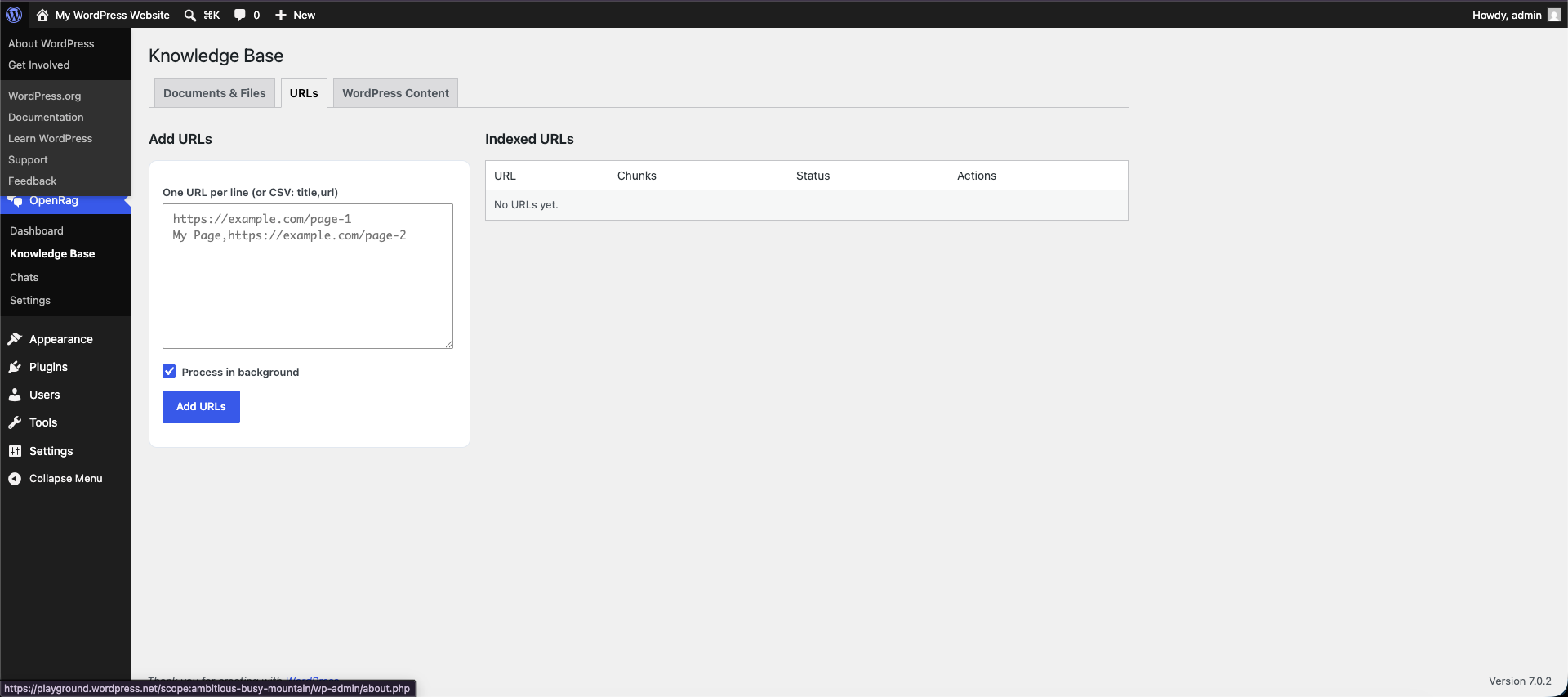
4. Knowledge Base — URLs
Paste one or many URLs (plain list or title,url CSV) to fetch, extract readable text, embed and index.
Chats
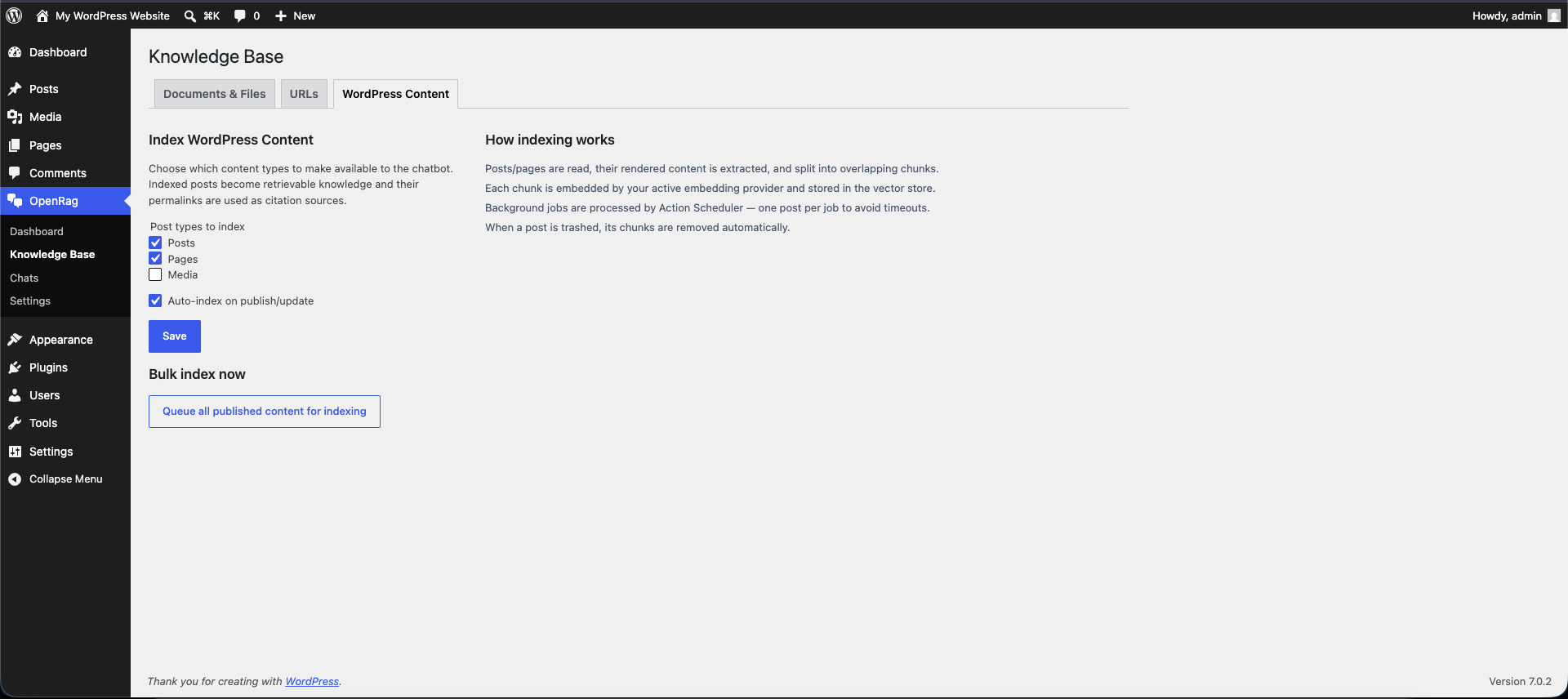
5. Chats
Paginated list of every conversation with search, date filter, feedback icons (👍/👎), per-row detail view, and one-click CSV export.
Settings
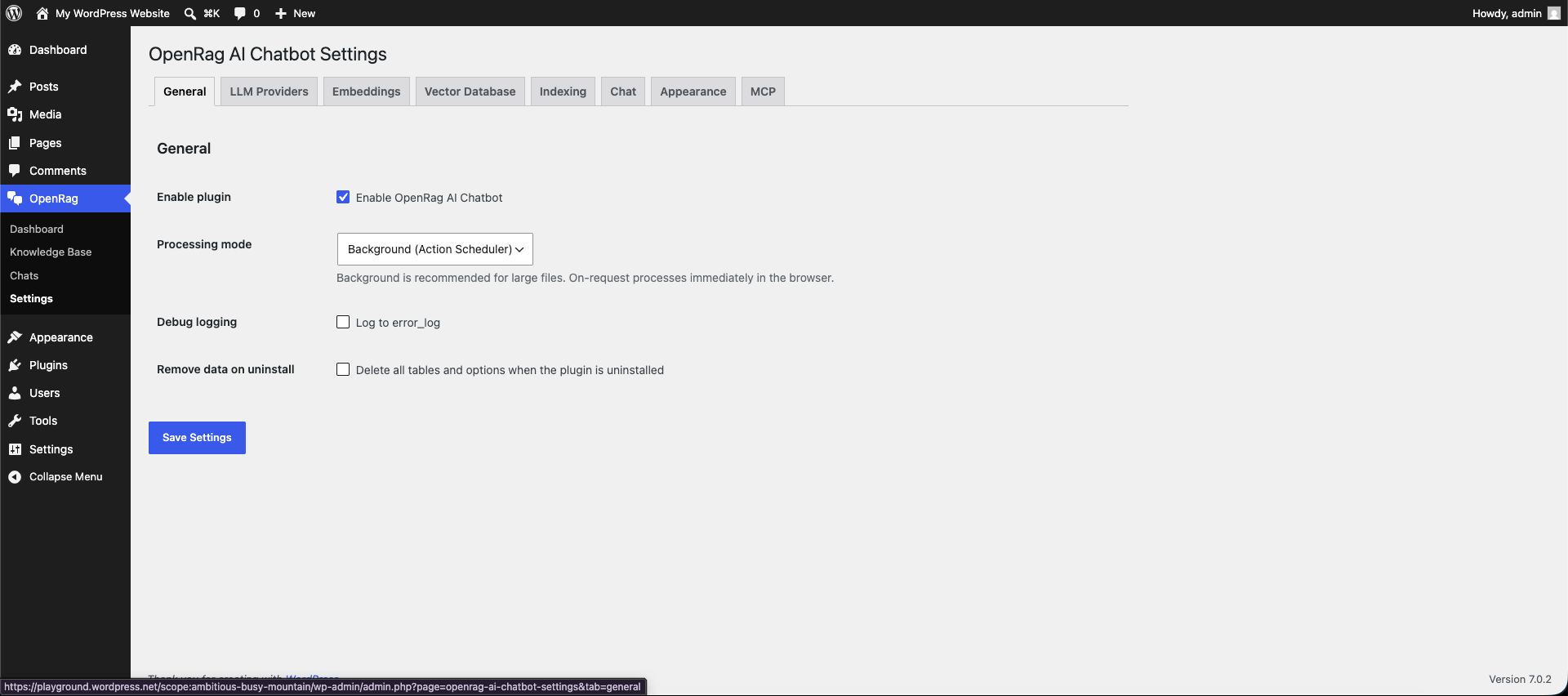
6. Settings — General
Enable/disable the plugin and set global options.
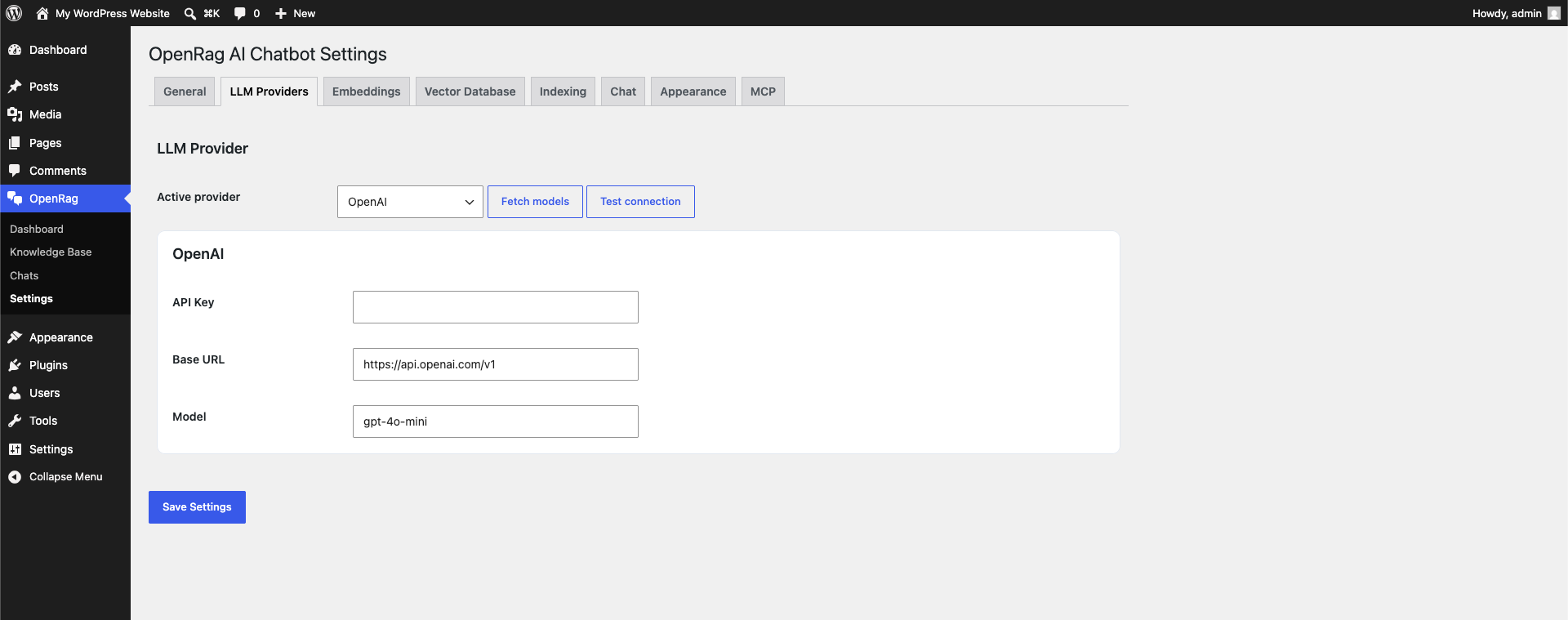
7. Settings — LLM Providers
Choose between OpenAI, OpenAI-compatible, Anthropic, Cloudflare, Groq, or Ollama. Fetch models and test the connection right from the admin.
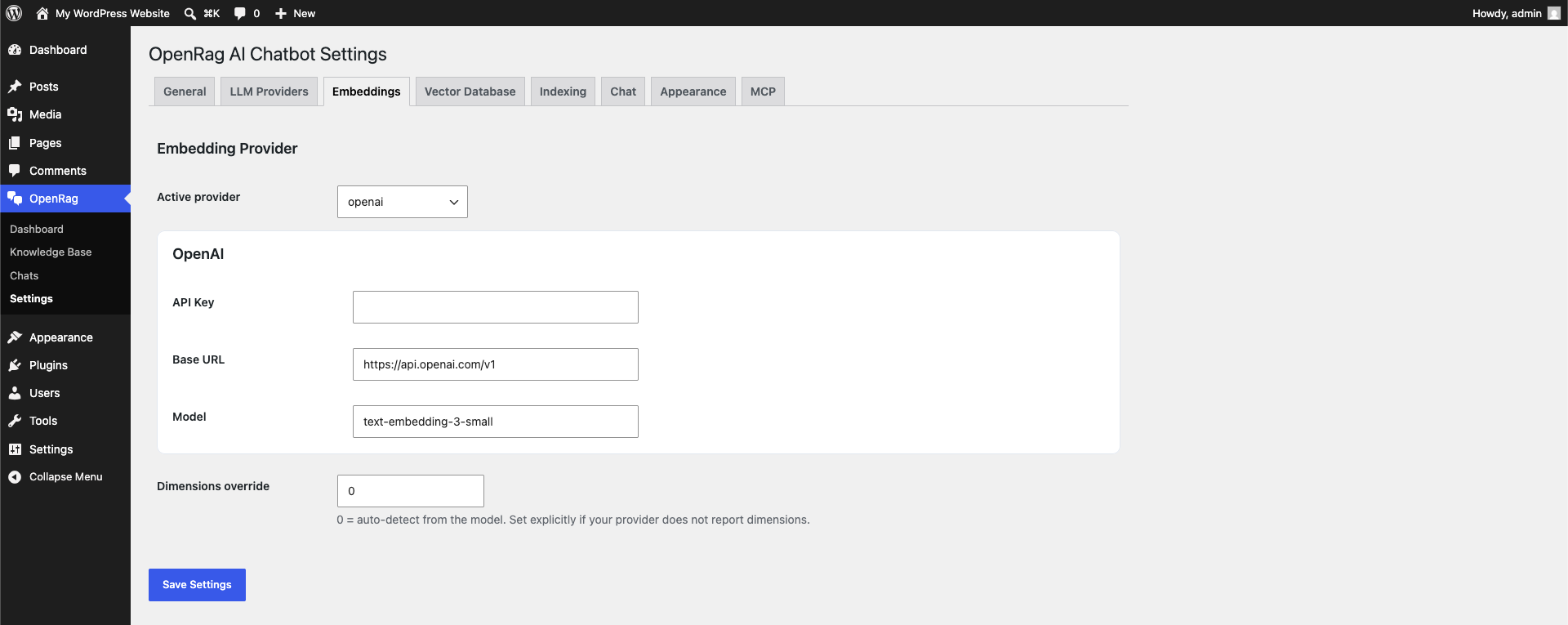
8. Settings — Embeddings
Configure the embedding provider separately from the LLM (OpenAI, OpenAI-compatible, Cloudflare Workers AI, or local Ollama).
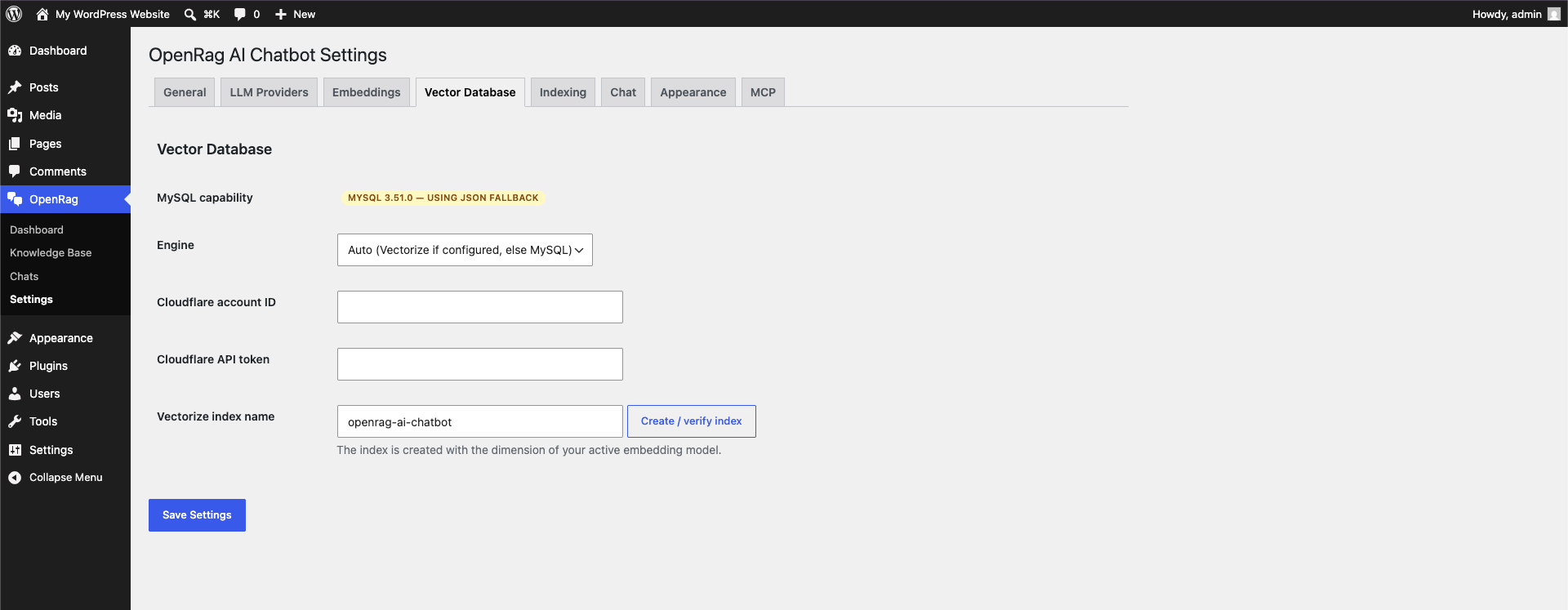
9. Settings — Vector Database
Auto-detected MySQL 9 native VECTOR capability, engine selector (Auto / MySQL / Cloudflare Vectorize), and one-click Vectorize index creation.
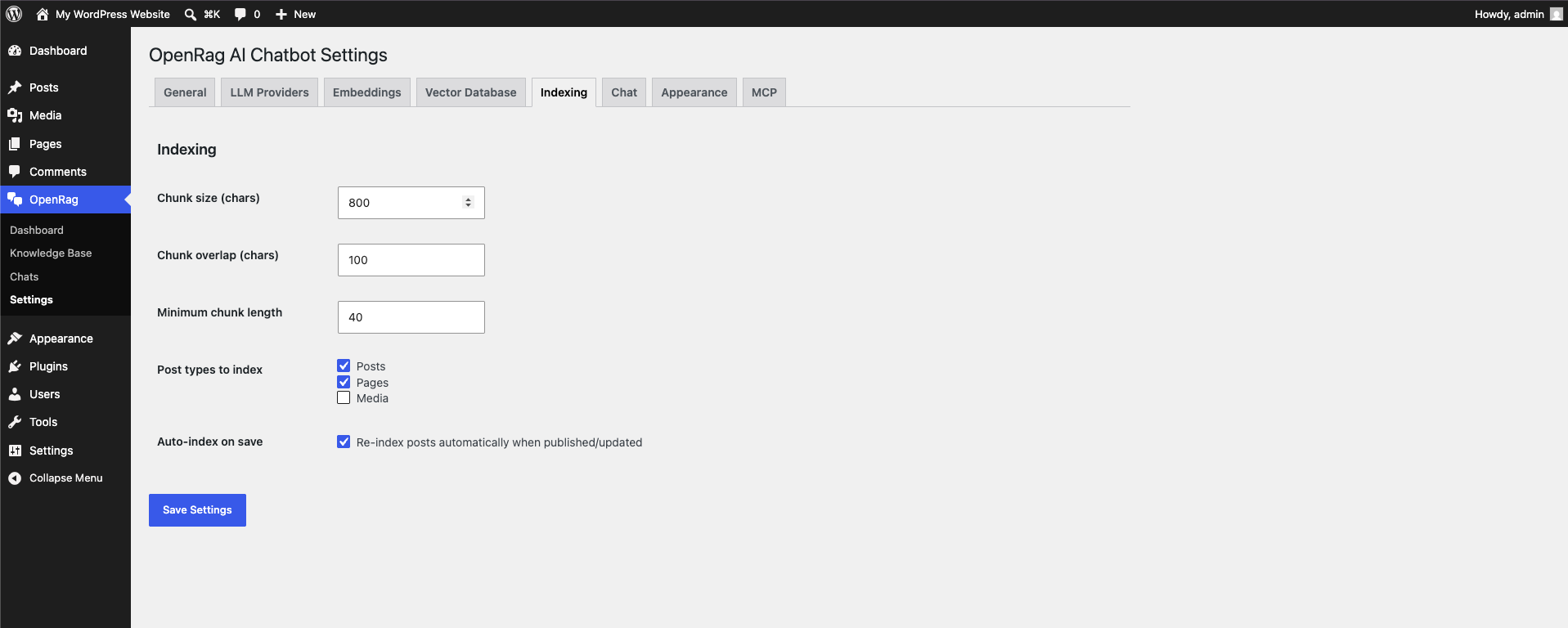
10. Settings — Indexing
Chunk size, overlap and minimum chunk length, plus the post types and auto-index options.
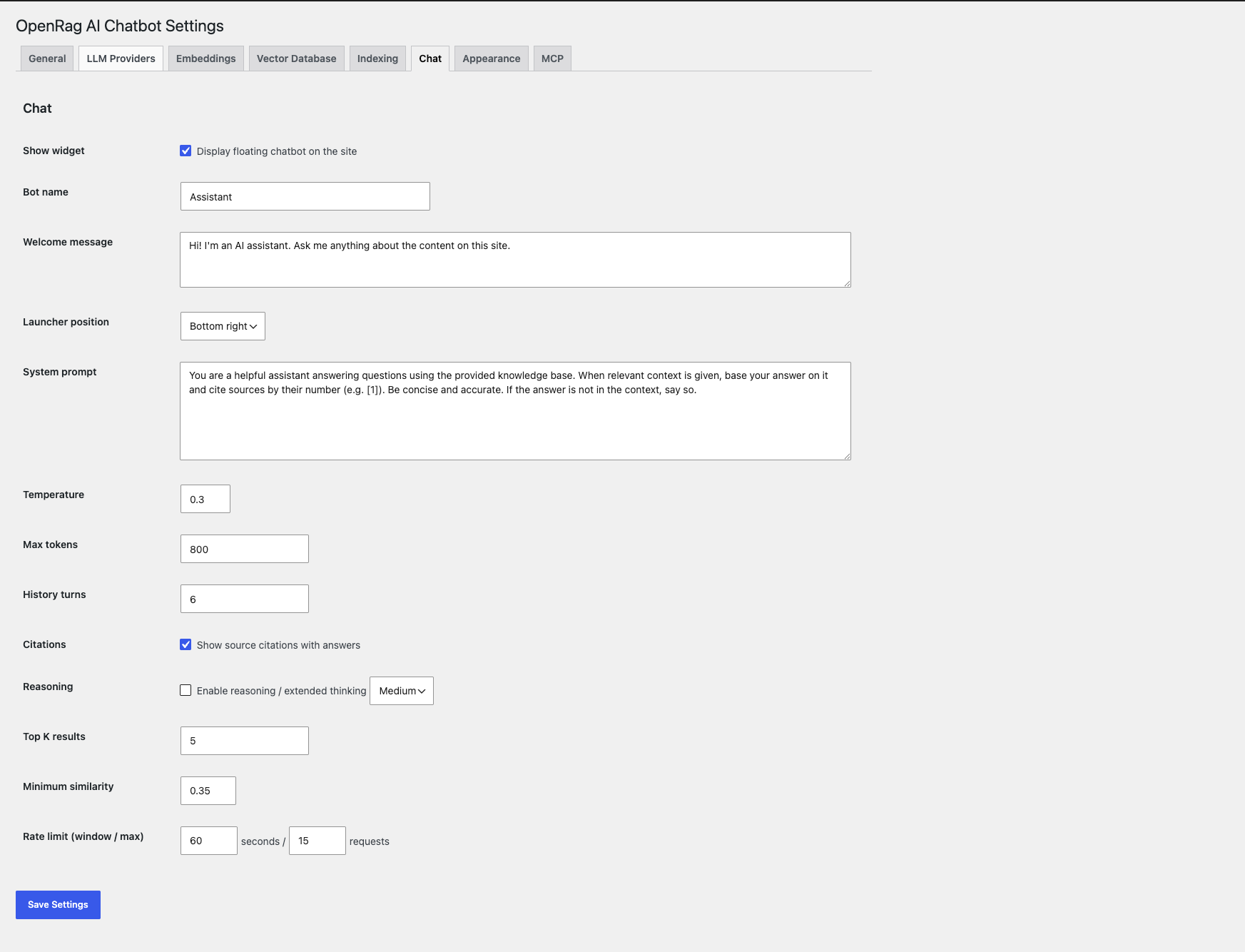
11. Settings — Chat
Bot name, welcome message, system prompt, citations toggle, reasoning/extended-thinking toggle, top-K, similarity threshold, and rate limiting.
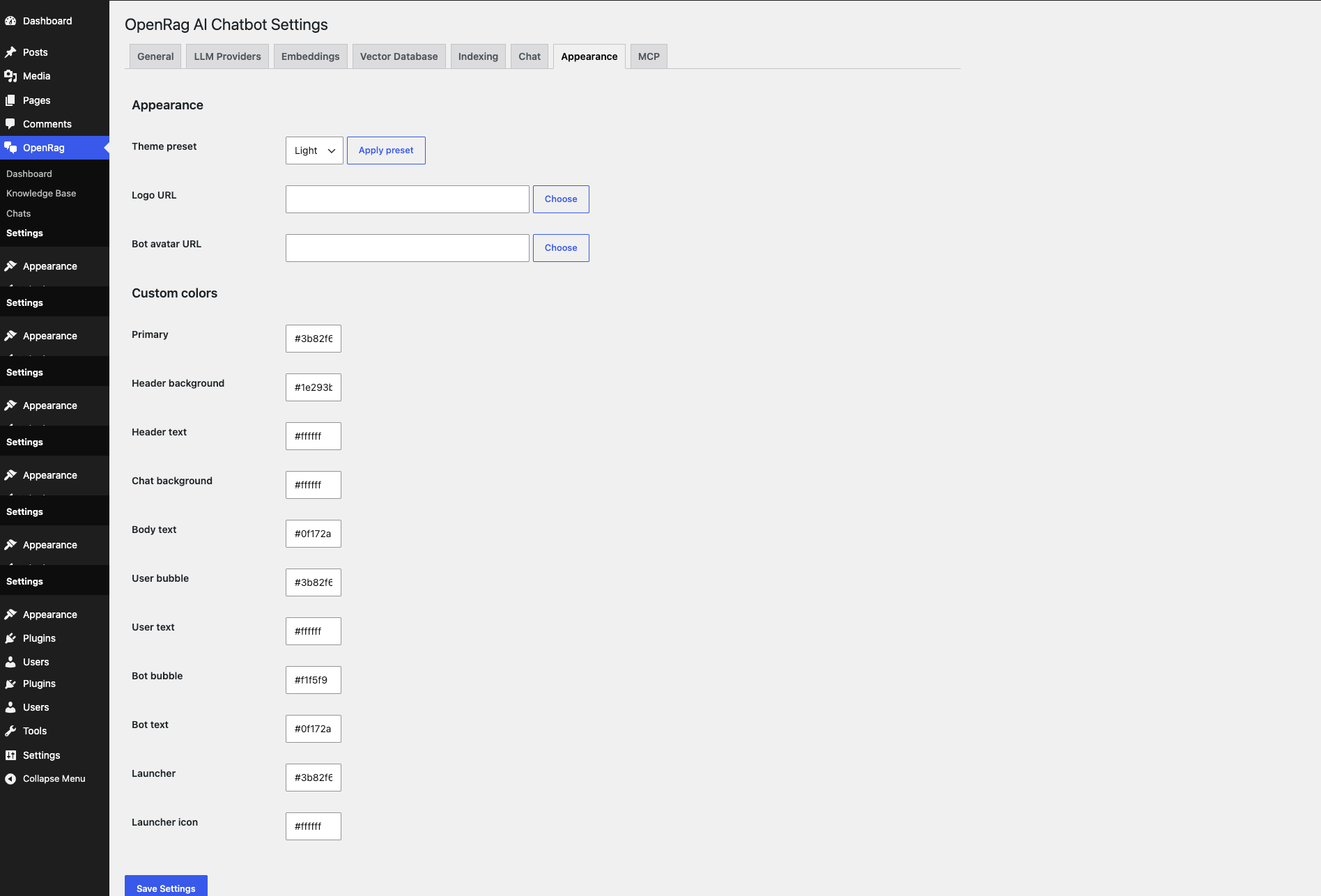
12. Settings — Appearance
Four preset themes (Light, Dark, Ocean, Sunset) with per-color overrides, plus custom logo and bot avatar upload.
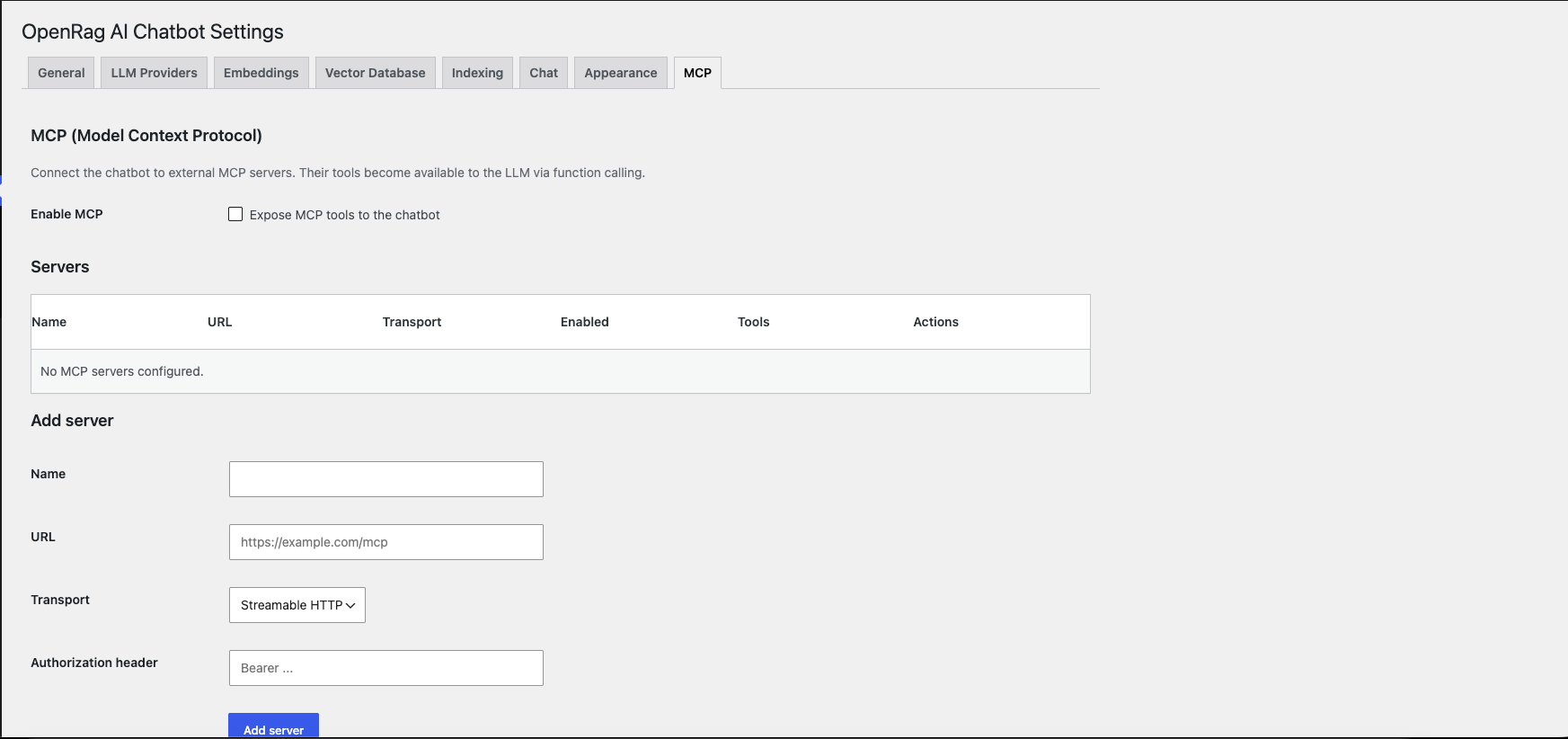
13. Settings — MCP
Connect to external MCP servers (streamable HTTP or SSE), discover their tools, and enable them for use by the chatbot via function calling.
Frontend
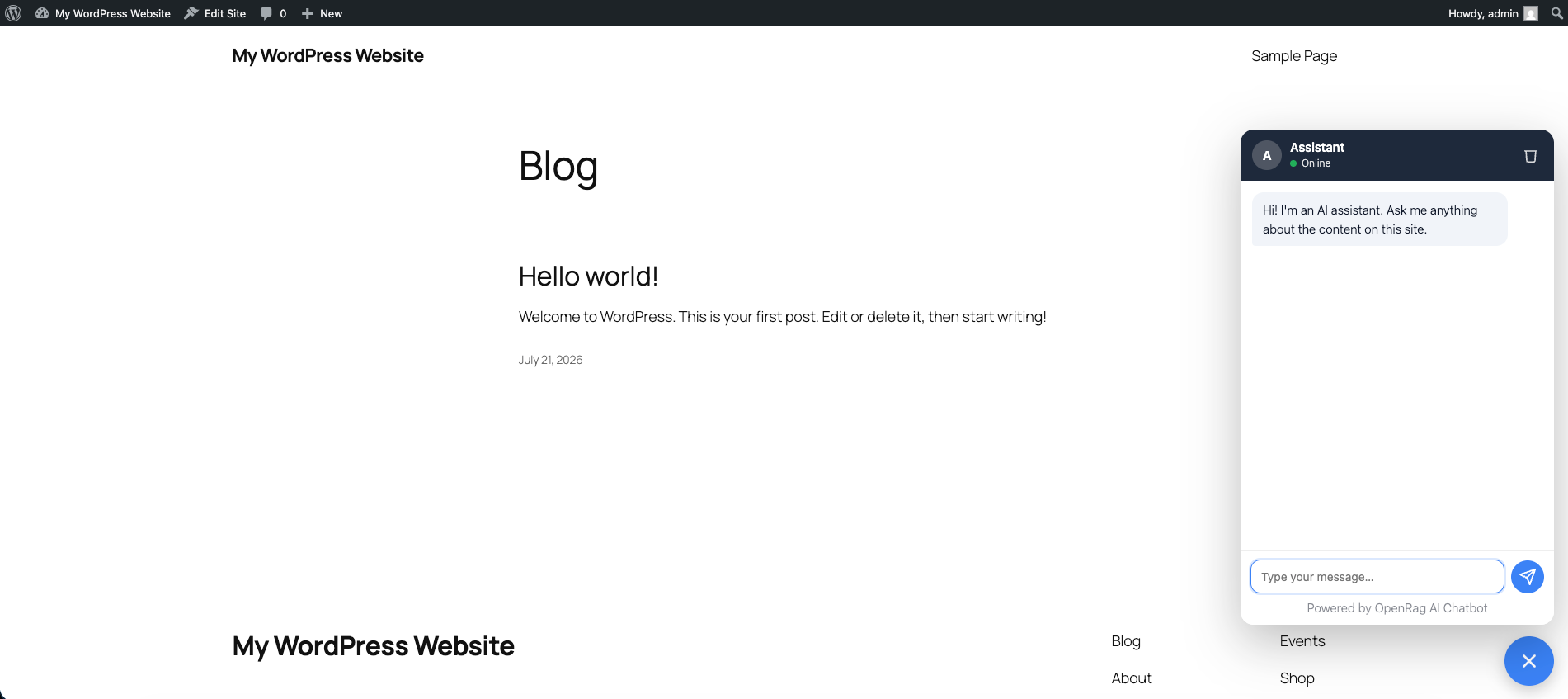
14. Frontend chat widget
Floating chat with streaming answers, a collapsible reasoning panel, citations/sources list, and thumbs-up/down feedback.